Saturday, March 02, 2013

Online Office Apps

Online Office Apps: 

Google Docs vs. ThinkFree vs. Zoho

For quite a while, Web-based suites -- which offered word processing, spreadsheets, presentations, and other tools associated with desktop office suites -- were extolled not because they did these things well, but because they could do them at all. But the three major competitors, Google Docs, ThinkFree, and Zoho, have all made major improvements in recent months. They're becoming both broader, with more applications, and deeper, with more features and functionality in existing apps.
The question is: Are these three applications really ready to take on a desktop-based heavy hitter like Microsoft Office?

True Challengers to Office?

Microsoft Office (primarily its Word, Excel and PowerPoint applications) has long been famous for including every possible feature, no matter how obscure -- and for imposing a hefty load of code on your hard drive to provide all those features, not to mention the heavyweight user interface it takes to support them.
Early versions of Web-based productivity suites tried hard to imitate Office, but they were at a double disadvantage: They didn't offer anything like the feature set of the Microsoft applications, and they were severely handicapped by what it was possible to do in a browser (in controlling the on-screen display of the text sizes and attributes, for example).
A couple of things have happened over time, however. One is that the programmability of browsers has been radically improved, beginning with AJAX techniques. Support for standards has improved as well (though there's still a lot of ground to be made up here), so that advanced tricks with cascading style sheets, for example, work more dependably across the available browsers and provide much better on-screen rendering of the documents.
Another change has been the spread of the open-source software movement. Desktop competitors to Microsoft Office, such as OpenOffice.org, have begun to get some traction. These suites may not come with all the features of the Office apps, but they don't come with its price tag, either. They also offer good functionality, good support for Office document formats (as well as truly open formats of their own), and you pay whatever you want to pay -- or nothing at all. As a result, users have become more open to considering alternatives to Microsoft's ubiquitous suite.

The Contenders

While Google Docs, ThinkFree and Zoho vary in the breadth of the applications they offer, their features and their usability, they are all capable of doing real, useful work. They do what you expect of productivity apps -- create documents, spreadsheets and presentations -- in sophisticated fashion.
Then they take advantage of the fact that they are Web-based to add another level of productivity. In various ways, they incorporate "presence" features that let you enable collaboration with others from within the apps themselves -- you can e-mail files, share access to files (either read-only or read/write) with individual contacts or groups, or publish files (to a blog, a Web page, or a select group of contacts).
All three of these Web-based suites are free, and an account includes storage for your documents (ThinkFree and Zoho offer 1GB; Google doesn't specify a size limit, but it lets you store up to 5,000 documents and 5,000 images online).
And because you work in a Web browser, they're cross-platform applications by default: You can create a presentation on a Linux box at home, edit it on a Mac at the office, and display it on a client's PC. Support for mobile devices is still in its early stages, but versions of some of the apps are available for smart phones as well.

Google Docs

Google Inc.'s Google Docs sticks to the basics but does them elegantly. It offers just the classic three productivity applications: word processor, spreadsheet and presentation editor. But its user interface seems especially well thought-out.
Its file organizer is uncluttered but provides a very usable management console for uploading, downloading and creating new files in any of the suite's three applications. The Google Docs word processor and presentation apps present particularly clean user interfaces -- something they can get away with because they provide arguably the least functionality of the three suites.
Google, of course, offers a variety of Web-based apps, some of which can also be considered important parts of any productivity suite -- Gmail, for example, or Google Calendar. However, they are not really integrated with the other applications (except via a small set of links on the top left of each Google page).
Google Docs has made many small improvements in the last year, and one really big one -- Gears (until very recently called Google Gears), a software platform that works as a browser extension to let you take your documents offline, work with Web applications while you're disconnected, and then sync your changes automatically when you reconnect. Besides Google Docs, a handful of other Web apps (including rival Zoho) currently work with Gears, and more are expected.

ThinkFree Online

ThinkFree Corp.'s ThinkFree Online can be used independently, but users are heavily encouraged to use it as an adjunct to ThinkFree Office, the offline software version. For example, its sync tool, ThinkFree Manager, is available to all buyers of its desktop version of ThinkFree Office, so documents stored in a ThinkFree Web account can be worked on offline and automatically synced when you reconnect.
ThinkFree has also improved the integration of its apps with a file-management console called "My Office" that supports hierarchical folders, and tracks files you have published or shared with others.
ThinkFree has also added an offline capability for all users of its online apps by letting them download and install an ad-supported version of the ThinkFree Office desktop apps, and including ThinkFree Manager, an offline file manager that keeps track of local files. When a Web connection is available, you can log into ThinkFree Manager and run a sync process that synchronizes all the documents changed while you were offline with their online versions stored in your ThinkFree Web account. ThinkFree has also improved the integration of its online apps with a file-management console called "My Office" that supports hierarchical folders and tracks files you have published or shared with others.
ThinkFree Online offers the same three applications as Google Docs, plus a couple of extras that are more or less "coming attractions":
  • A Workspace application that doesn't do much yet but looks as if it is intended to be a collaboration space that would let a team share documents and create threaded discussions.
  • A billboard for a forthcoming Notes application that ThinkFree describes as a "Web Editor" that will handle formats such as .doc, .docx (the current Office standard) and PDF, and will offer WYSIWYG features not currently found in the current ThinkFree word processor.
ThinkFree's user interface ranks only slightly behind that of Google Docs: Visually, it feels slightly more cluttered, but its file organizer works well, and its applications perhaps come the closest of the three Web-based offerings to matching the functionality of Microsoft Office. ThinkFree makes a selling point of its close resemblance to Office, in fact: The applications look and work like the traditional Office 97/2003 apps (before Office 2007 and the Ribbon interface came along).

Zoho

If there's a trophy for the company that takes Web-based apps the most seriously, Zoho may have already retired it. The company offers something like 20 products online, some free and some not, which range from basic productivity apps to customer relationship management systems and webconferencing tools.
The range of applications is large, but their integration as a suite is spotty. Once you log in, you can switch to other Zoho apps without having to log in again each time, but each application is a stand-alone. While Google Docs and ThinkFree offer file organizer views that let you organize your files into folders and see them all in one place, Zoho does not. Each application shows you just the files you have created in that app in a long list that you can sort, but not subdivide into folders.
Zoho has begun to build offline operation into its applications by making them compatible with Google's Gears. Currently Writer utilizes Gears, but other Zoho apps don't yet.
So which of these Web-based suites would be the best to use in place of Microsoft Office (or any other desktop suite)?

Word Processing

Word processing was one of the personal computer's first killer apps, and it is still the cornerstone of any productivity suite.
Google Docs is the lightweight in the group, with the fewest word-processing features (even its find-and-replace function is marked "beta," which tells you something), but this is not necessarily a bad thing. If you like a clean interface, then Google's word processor is for you. Documents open by default in a new "fixed-width" view that's the equivalent of looking at the "page preview" mode of Microsoft Word.
And Docs does have some interesting tricks -- it lets you treat the document as a Web page and edit its HTML and CSS information, for example. Given that you can "publish" any Google document as a Web page with its own URL, this means you can create Web pages that you can update from anywhere without needing to FTP files to your Web site.
It takes a lot for a Web app to handle user interface issues such as formatting the on-screen display of type fonts and supporting the extensive file management that's a big part of word processing. All three of these word processors are capable of tasks such as formatting the typefaces, placing and sizing graphics, arranging paragraphs, and setting up tables. But only ThinkFree offers the really sophisticated features, such as letting you format a hanging indent. (This apparently has as much to do with the user interface as it does coding -- Google Docs and Zoho preserve hanging indents in imported documents, but there's no place in their interfaces for you to create one.)
In fact, ThinkFree's word processor gives you the most features (or the most unimportant ones, depending on how you feel about, say, drop caps), and the most control over things like the content of headers and footers.
Zoho Writer falls nicely in the middle. It offers more formatting control than Google Docs (it's easier to set up a header and footer in Zoho Writer, for example, than it is in either of the other suites) but it isn't as feature-heavy as ThinkFree.
Zoho Writer's support for Google's Gears is another plus. Writer added the feature late last year, becoming one of the first non-Google apps to work with the technology. Other recent Writer improvements include pagination, document headers and footers, an equation editor with LaTeX support, and more.
Google Docs and Zoho Writer both include "presence" features that show you who else is editing the document in real time. Zoho goes even further to support chat, allowing you to either broadcast messages to all other users, or click on an individual in the Collaborators list and open a private chat window.
In testing, ThinkFree was the only app that had noticeable performance issues, mostly because it seemed to need to download Java code almost every time a new document type was opened, or after its browser window was closed or the computer was rebooted. ThinkFree also seemed to be more at the mercy of overall network performance than either Google Docs or Zoho.

Picking a Winner:

Overall Google Docs wins by a nose over Zoho Writer. Both let you work offline with Gears, and both maintain version histories. Google Docs takes the lead with its leaner, cleaner user interface and unified file management. ThinkFree is a good choice for Microsoft Word fans, but its performance issues keep it in third place.  

Spreadsheets

The quality of the three suites' spreadsheet apps closely mirrors that of their word processors: All three offer clean user interfaces, good compatibility with Microsoft Excel, and only slight -- but important -- variations in their feature sets.
Zoho is the spreadsheet features winner. It will do pivot tables, macros and conditional formatting -- three capabilities that mark the current state of the art for spreadsheets. Google Docs does pivot tables via a plug-in. ThinkFree has promised a new version of its Calc app with pivot tables and macros, but as this was written, it had not yet delivered them.
There is less variation in the user interfaces of the three spreadsheet apps than there is in the word processors, perhaps because they all stick pretty close to Excel. However, there are some differences.
Both Google Docs' and Zoho Sheet's user interfaces are clean and consistent with their word processor's interfaces. ThinkFree Calc's user interface shows the suite's devotion to Office Excel in its menus and feature set.
ThinkFree Calc has a weakness that's also a minor annoyance in its word-processing and presentation apps: Its font rendering is not of the same quality as Google's and Zoho's. Large characters can look a little ragged, and blocks of smaller type lack the smoothness and contrast that the other apps show. It makes the ThinkFree apps look a little retro.
The Google Docs spreadsheet app, like its word processor, offers a limited number of features, but the defaults the designers have chosen are good ones. The charting function is one example: It works differently from Excel, but the difference allows you to select a multicolumn range for the chart -- the first column becomes the labels, and the second furnishes the chart data.
Google Docs gets extra points for its Gadgets, which are plug-ins that let it do fancier things with graphics -- you can create org charts or Gantt charts or interactive charts, for example. Other Gadgets let you use graphic objects in charts, or add Google features like Maps and Search.
Google Docs shows you who else is editing the spreadsheet and offers three tabs that let you publish (show the document on a public page), share (allow others to view and/or edit the document) and discuss (have a live chat with other users -- which raises the question of why we can't have this chat function in Google Docs' word processor, too). Zoho Sheet does something like this as well, although the user interface is different than that in Zoho Write.
All three spreadsheet apps felt slower than their counterpart word processors. Editing formulas or rearranging the columns of a worksheet at times seemed painfully slow. Odd things happened occasionally, as well. For example, rearranging the columns in a relatively simple Google Docs worksheet apparently resulted in some cell references disappearing from formulas. Zoho Sheet repeatedly posted an error message that a "script" in the relatively simple test worksheet wouldn't stop running.

Picking a Winner:

Zoho Sheet clearly has the best feature set -- at least for the moment -- and its integration of chat and publish functions shows why Web-based applications will be so important. 

Presentations

If you use presentation apps to customize existing stock presentations for specific audiences by rearranging slides and changing text, then Web-based apps may serve your needs nicely. But if you're the Cecil B. DeMille of PowerPoint -- if your presentations are loaded with reveals and fly-in objects and transitions -- you may find that even ThinkFree, the most full-featured of the lot, is barely adequate.
The presentation apps in the Web-based suites are more limited than the word-processing and spreadsheet applications. ThinkFree Show sticks closely to PowerPoint, but Google Docs and Zoho Show are both missing standard, often-used features like layout grids and slide transitions -- and even, in the case of Google Docs, clip art.
Even ThinkFree has its limitations. It won't do everything PowerPoint does. Among other things, its selections of presentation designs and clip art are limited, and there's no "insert movie" feature.
Another limitation is size -- all three Web-based suites limit the size of presentations you can upload from your computer to 10MB. That's obviously a number chosen to hold down file transfer times, because presentations -- especially if they include video or many photographs -- can be much larger.
Fortunately, once your presentation is uploaded, it can grow to whatever the limits of your storage space are. If you customize your presentations by combining slides from several sources, then you'll want to use Google Docs or ThinkFree: They let you cut and paste slides between presentations; Zoho doesn't.
However, Zoho compensates for some of its shortcomings by offering the widest variety of presentation design templates (about 50), and the most useful clip art and symbol collections. ThinkFree includes 33 presentation designs, and Google Docs only has 15.
Google Docs, for its part, does one trick the others don't -- you can embed a YouTube video in a slide. Given that just about any video is, or can be, available on YouTube, that can be very useful. (You don't suppose it has anything to do with the fact that Google owns YouTube, do you?)
Google Docs has another feature, in some ways more impressive, that it shares with Zoho Show: you can invite others via e-mail to watch the presentation while you control it. It's an easy way to support a conference call with visuals -- put up the agenda and other information as a quick presentation, and send an invitation to the attendees as a group. When they click on a link, they'll join a real-time presentation that you can control.
Zoho improves on this, although the process is more complicated: You can view the speaker notes while hiding them from your audience. And thanks to the range of Zoho's online applications, you can switch to Zoho Meeting from within the presentation and share your desktop with the attendees. (Unsharing the desktop and getting back into controlling the presentation, though, can be a challenge.)

Picking a Winner:

Zoho Show's wide variety of templates and clip art makes it the most useful of the three apps, and its integration with Zoho Meeting gives you a new presentation tool you haven't had before.

Leveraging the Web

All three suites take interesting advantage of the fact that they are Web-based, but we're still in the learning-to-crawl stage.
The creators of Google Docs, ThinkFree and Zoho have obviously put a lot of thought into how a productivity suite might leverage the power of the Web. In Google's case, that means tying Docs to other Google applications -- which sometimes works better in theory than it does in practice. You can schedule an "event" around a Google Docs presentation by inviting viewers and putting an entry into your Google Calendar, but when the appointed hour comes, all you get is a pop-up reminder. Why couldn't Google Docs open to the presentation, start it, and set you as the presenter? Or at least put a link to the presentation into the pop-up?
Integration with e-mail seems an obvious plus for a Web-based app, but none of the suites do much with it. Zoho's Share dialog gives you the option of receiving an update message when the document is edited by a collaborator, and Google Docs does something similar, but not consistently -- you can subscribe to an RSS feed within Google Docs documents that's supposed to display an update when collaborators make edits, but for spreadsheets you get an e-mail, not an RSS option.
Google Docs allows you to select contacts to share documents with by opening your Gmail contacts list. However, neither Zoho nor ThinkFree knows about your e-mail contacts, which seems curious, given how common it is for other Web-based apps like social-networking sites to prompt you for your e-mail account information and suck in all your contacts.
Cross-platform performance is another area that needs development. One of the advantages of using Web-based applications and file storage is that you can work on a variety of platforms from a variety of locations. All three suites ran more or less well in a Firefox 2.0 browser on Windows, Mac and Linux. They even worked on a minimally configured Linux-based Asus Eee.
But even Google Docs, which offered the most responsive performance of the suites, hit a user interface wall with the Eee's 800- by 480-pixel screen: The dialog box for creating a chart in a spreadsheet was too big for the screen, so the "OK" button couldn't be clicked. This kind of problem is endemic to apps on the increasingly popular breed of ultramobile PCs, and they need careful attention from developers.

Picking a Winner:

Of the three suites, Google Docs provides the most Internet connectivity, even though, as noted, there's still a long way to go here. Google's generally good support for mobile devices also contributes to the potential of the Web applications platform Google is putting together.

Conclusion

Web-based productivity suites have made a transition. While at first they simply imitated desktop applications in a Web browser, the current versions add features that begin to integrate the social computing features of the Web. At the same time, they've begun to grow away from simply imitating Microsoft Office to developing personalities of their own.
They share common ingredients, but the recipes vary. Google Docs begins with Google's deep understanding of Web application development and yields apps that are consistently usable, if not always feature-rich. ThinkFree comes from the opposite direction: It began by working hard to replicate the Office user experience in a browser and now needs to focus on Web-enabling the apps. Zoho seems to have the best understanding of the value the Web adds to productivity apps, but Zoho applications don't always match the usability of Google's.
Taken together, the suites prove that Web-based productivity is no longer a contradiction in terms. They have gotten good enough not only to be useful on their own, but also to give an indication of some of the new uses they will make possible as they continue to grow into the Web.
 

Sunday, February 24, 2013

Motion Chart by Master Excel


Motion Chart by Master Excel

Introducción

 
    En el artículo anterior relate sobre la historia, desarrollo y el uso del Grafico Motion Chart; sinceramente me encanto mucho esta aplicación estadista, así que decidí desarrollar una aplicación más completa que emule algunas de las cualidades más significativas de este sistema en ambiente MS Excel.
    En los siguientes temas explicare como alimentar la aplicación con información para poder realizar análisis, así como también sus comandos y funcionamiento.

Motion chart by Master Excel

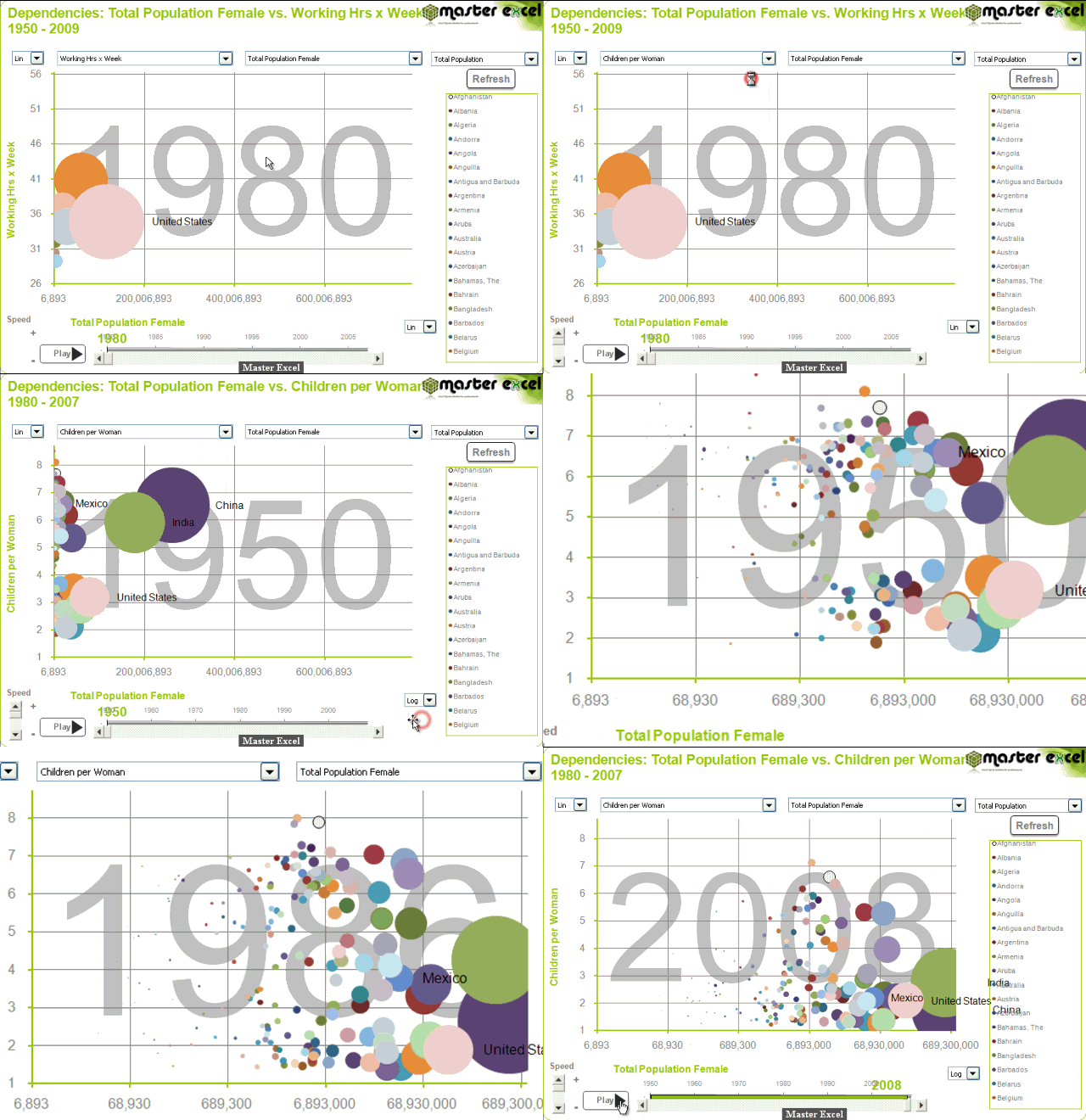
    Sinceramente la forma en que trabaja esta aplicación es muy sencilla, pero la aportación que da la información al ser exhibida en ambiente gráfico es sumamente interesante, como se podrán cerciorar en la imagen animada de la portada.

Los comandos con los que vamos a trabajar son los siguientes:
  • Lista desplegable escala lineal y logarítmica
  • Lista desplegable ejes "X", "Y" y "burbuja"
  • Barra deslizadora de velocidad de animación
  • Barra deslizadora de tiempo
  • Botón Play / Stop
  • Botón Refresh
  • Lista de ciudades

Lista desplegable escala lineal y logarítmica
    La función de esta lista es la de ajustar los ejes "X" y "Y" de manera lineal o logarítmica, la razón del por qué este ajuste es que hay veces que la información graficada puede tener tintes logarítmicos o exponenciales, que hacen difícil la apreciación de la distribución de los puntos graficados si utilizamos una escala lineal.

Lista desplegable ejes "X", "Y" y "burbuja"
    En esta lista se seleccionará los indicadores de interés a analizar.

Barra deslizadora de velocidad de animación
    Esta barra nos ayuda mucho al momento de querer apreciar un acontecimiento significativo en el gráfico, de forma que podamos disminuir la velocidad de animación para una mejor apreciación y viceversa en el caso de que se suscite una factor no relevante tenemos la opción de aumentar la velocidad de animación.

Barra deslizadora de tiempo
    Esta opción nos facilita desplazarnos a placer al año de nuestra predilección, de manera rápida y cómodamente.

Botón Play / Stop
    Este botón es el responsable de crear la magia de la animación de la gráfica, con el podemos reproducir o parar cuantas veces queramos la animación.

Botón Refresh
    Este botón fue diseñado especialmente para incluir nuevos indicadores en la gráfica, con el fin de ofrecer una gama infinita de opciones para analizar datos.

Lista de ciudades
    En esta lista se visualizan las ciudades concernientes a los indicadores.

 
¿Cómo agregar nuevos indicadores a la aplicación?

    Actualmente la fundación Gapminder (desarrollador del Trendalyzer software system) distribuye de manera gratuita las bases de datos (formato MS Excel) del cual se alimenta el software de estadística motorizada (Motion Chart), para crear sus animaciones estadistas. El software que desarrolle (Motion Chart by Master Excel) está diseñado exclusivamente para alimentarse de estas bases de datos (los indicadores), el método para incluir las bases de datos a la aplicación (Motion Chart by Master Excel) es resumida en unos sencillos pasos.

    Primero descargamos la base de datos de interés desde la pagina http://www.gapminder.org/data/, en el apartado DATA, en el seleccionamos el indicador deseado y descargamos el archivo seleccionando con el mouse el icono de MS Excel.


    Después abrimos el archivo descargado en Ms Excel, consecutivamente nos ubicamos en la pestaña donde se encuentra la base de datos del indicador y le cambiamos el nombre a la pestaña por el nombre del indicador.


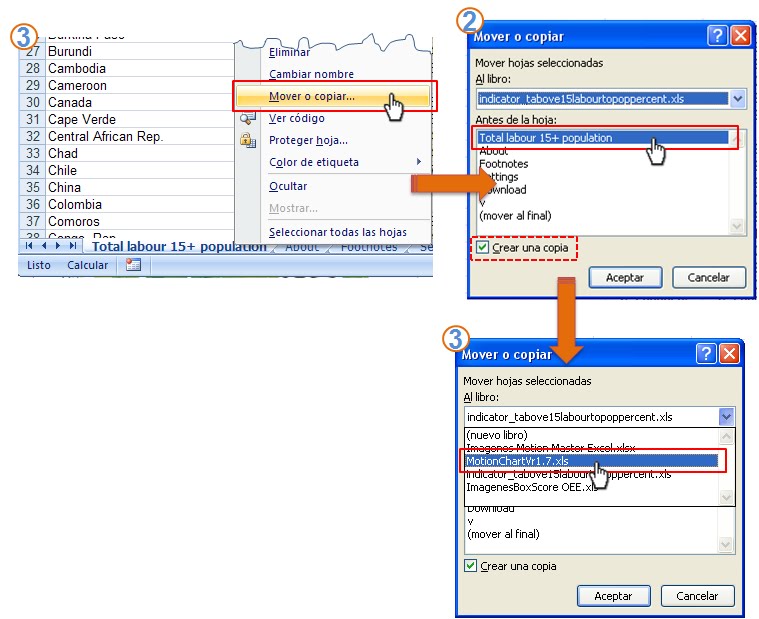
    Ahora lo siguiente es trasladar la hoja del indicador a la aplicación (motion chart by Master Excel) previamente abierta, para ello nos volvemos a colocar en la pestaña donde se encuentra la base de datos ya con el nuevo nombre, oprimimos clic derecho y seleccionamos la opción "Mover o copiar…", en la ventana que aparece habilitamos la opción "Crear una copia", después seleccionamos la hoja de interés a trasladar (en este caso la base de datos del indicador), y en la opción "Al libro:" seleccionamos el libro donde deseamos trasladar la hoja, el cual sería el libro donde se encuentra ubicado la aplicación motion chart y aceptamos.


    Por ultimo nos situamos en la aplicación motion chart y oprimimos el botón Refresh para actualizar la base de datos e incluir en nuestro análisis el indicador descargado.


Video podcast of motion chart by Master Excel


Puedes descargar aquí el libro de Microsoft Excel gratis:


    Bueno con esto concluyo este artículo esperando que haya sido de su total agrado, me gustaría  que me apoyen a mejorar estos artículos con sus comentarios y sugerencias que son muy importantes para mí.

    Recuerden visitar mi otro blog Excel4Lean, ahí encontrarán técnicas interesantes para análisis y mejoras de procesos productivos.
¿Qué sigue?

    En el siguiente artículo hablaré de cómo crear una lista desplegable que se actualice automáticamente sin utilizar macros.

    Saludos, best regards.

Just What Are Cubes Anyway? (A Painless Introduction to OLAP Technology)

Office XP
346 out of 387 rated this helpful - Rate this topic
 
Carl Dubler and Colin Wilcox
Microsoft Corporation
April 2002
Applies to:
    Microsoft® Excel 2002
Summary: This quick and easy introduction to OLAP databases shows you the differences between traditional Online Transaction Processing (OLTP) databases and Online Analytic Processing (OLAP) databases and how to access OLAP databases from your Office solutions. (8 printed pages)

Contents

Chances are your business uses at least one database, and probably more. The databases store information about business transactions, plus other data such as employee records. Those types of systems are called online transaction processing (OLTP) databases.
You may not know it, but your OLTP data contains a wealth of information that can help you make informed decisions about your business. For example, you can calculate your net profits for last quarter and compare them with the same quarter of the previous year. It can also provide other types of valuable information such as which employees are the most and least productive, and the optimum levels of goods to keep in stock.
The process of analyzing your data for that type of information, and the data that results, are collectively called business intelligence. Typically, business intelligence tries to answer the following types of questions:
  • What were the total sales of all products last year?
  • How does our profitability for the first quarter of this year compare to the same time period during the past five years?
  • How much money did customers over age 35 spend last year, and how has that behavior changed over time?
However, you can spend a lot of time and money trying to extract business intelligence information from your database. Some organizations use a small army of data professionals and perhaps a dozen different software packages to produce simple reports. Also, if the report doesn't have the proper information, its creators have to start over.
The time and expense involved in retrieving answers from databases means that a lot of business intelligence information often goes unused. The reason: most operational databases are designed to store your data, not to help you analyze it. The solution: an online analytical processing (OLAP) database, a specialized database designed to help you extract business intelligence information from your data.
The following sections provide an overview of both types of databases. From there, we will look at OLAP databases in more detail.

Understanding OLTP Databases

Most businesses use (OLTP) databases to gather and store the records generated by their daily operations. Typically, (OLTP) databases execute transactions, meaning that they add, update, or delete groups of records at the same time. For example, the database for a grocery store inserts and updates information about prices, purchases, and costs of goods and freight, and it usually does so at lightning speed. After all, you don't want your customers to wait in line while your inventory system updates its stock and pricing tables.
However, the design that allows OLTP databases to record transactions quickly and accurately also makes it hard to analyze their data for several reasons. First, OLTP databases contain a large number of tables, sometimes hundreds. Those tables often have multiple relationships with other tables in the database. That complexity can make it hard to understand the database and know where to look for data.
The following figure depicts some of the tables and relations that exist in the Northwind sample database provided by Microsoft® SQL Server™ 2000:
Figure 1. Part of the Northwind database schema
Second, if you try to extract (OLAP) data from an OLTP database, you usually need to create and run stored procedures—groups of SQL statements compiled into a single execution plan. Stored procedures can take hours to run, and they can slow the down the production database, something you don't want to do with a live system. (Remember the whole "customers waiting in line" thing? You don't want that to happen.)
Third, during normal operations, OLTP databases constantly update their data. Trying to analyze changing data is, well, like trying to analyze changing data. You will always have a hard time obtaining an accurate result, assuming you can obtain one at all.
Finally, OLTP databases usually store individual records. For example:
On April 2, John Smith bought a case of apples from Jane Doe for $5.00.
That type of storage poses a problem for analysts because they use summarized data—totals and subtotals—to help answer business intelligence questions. Individual records don't help them at all.
In other words, you need a system that extracts data from your OLTP database, aggregates it into totals and subtotals, and then displays the resulting data in a way that allows you to spot past successes and failures, and to identify potential future successes and failures.
The solution to that problem is called an Online Analytical Processing (OLAP) database.

Understanding OLAP Databases

OLAP and OLTP databases differ in several respects. First, IT departments usually keep OLAP databases isolated from OLTP databases. Doing so ensures that the transaction database performs well, and that the OLAP database only receives historical business data. In addition, while the data in an OLTP database constantly changes, the data in an OLAP system neverchanges. Users never perform data-entry or editing tasks on OLAP data. All they can do is run mathematical operations against the data.
Second, OLAP databases use fewer tables and a different type of schema. For example, an OLAP database typically uses between five and 20 tables. In addition, they usually keep the number of joins to a minimum by arranging tables a star schema. The following figure depicts how part of the Northwind database could look when converted to a star schema:
Figure 2. A star schema
The central table in the schema is the fact table. Fact tables contain numeric data, such as zip codes, and additive data such as the total costs of freight for all beverages.
By themselves, numeric facts do not have much meaning. For instance, the number 206 by itself does not mean much. However, it takes on more meaning if you know that it represents an area code or the number of dishwashers sold yesterday. In a star schema, dimension tables contain the descriptive text that gives meaning to the numbers. Keep in mind that most analyses involve time, which makes time itself a key dimension.
The facts in a dimension are called members. By design, OLAP databases group the related facts in a member into hierarchies whenever the underlying data supports that type of structure. For example, the Time dimension in the preceding figure contains the following hierarchy:
  • Year
  • Quarter
  • Month
  • Order Date
Hierarchies use traditional parent/child relationships. For instance, Quarter is a child of Year, Month is a child of Quarter, and so on. If a child contains data that your OLAP system can aggregate, its parent level contains those aggregated sums. Some systems call those aggregated sums rollups. Whenever you drill up or down through your data, you navigate through those hierarchies.
The joins between the dimension and fact tables allow you to browse through the facts across any number of dimensions, as well as up and down any number of hierarchies. For example, you might query for:
Total sales and total costs for all beverages purchased in 1999 by customers in Colorado.
—or—
Total sales and total costs for beer purchased in 2000 by customers in Colorado.
The second query, of course, takes data from different hierarchy levels in the Time and Product dimensions.
The simple design of the star schema makes it easier to write queries, and they run faster. For example, running the total sales and costs query against an OLTP database could involve dozens of tables, making query design complicated. In addition, the resulting query could take hours to run.
Third, OLAP databases make heavy use of indexes because they help find records in less time. In contrast, OLTP databases avoid them because they lengthen the process of inserting data.

Putting the Databases Together

Now that you have an OLAP server and a star schema, you're ready to go, right? Well, no. Remember, IT departments deliberately isolate OLAP and OLTP databases. You need a way to move the data to the OLAP database, combine that data into useful aggregations, and then populate the tables. That process is often called Extract, Transform, and Load (ETL). SQL Server has a built-in utility called Data Transformation Services (DTS) that performs the ETL tasks.
You typically use DTS to populate your OLAP schemas, and then automatically update your data. The update interval depends on your business, and the types of answers you want from your data.
OK, now you're ready to produce killer reports, right? Sorry! Even though they use a simplified data structure, star schemas are sometimes too complicated for some analysts to understand. In addition, OLAP databases can contain the same type of information found in your OLTP databases:
On April 2, John Smith bought a case of apples from Jane Doe for $5.00.
In other words, you still don't have the aggregated data you need to answer your questions. Can you ever win?

Understanding Data Cubes

Data cubes provide the final piece of the puzzle. A cube aggregates the facts in each level of each dimension in a given OLAP schema. The business intelligence industry uses the word "cube" because it best describes the resulting data. For example, let's consider our star schema. When you create a cube from that schema, you take the freight, quantity, discount, and other facts and add them up by city, by year, by city and year, and by every other possible combination of dimension and hierarchy level. Those calculations produce the following type of data structure:
Figure 3. In other words, a cube
Note   Data cubes are not "cubes" in the strictly mathematical sense because they do not have equal sides. However, virtually all analysts use the term, and it is an industry standard.
Here is where things get really exciting. Because the cube contains all of your data in an aggregated form, it seems to know the answers in advance. For example, if a user asks for total sales by year and city, those numbers are already available. If the user asks for total sales by quarter, category, zip code, and employee, those numbers and names are already available. If it helps you to understand them, think of cubes as specialized small databases that know the answers before you even ask the questions.
That is the big advantage of a cube. You can ask any pertinent question and get an answer, usually at warp speed. For instance, the largest cube in the world is currently 1.4 terabytes and its average response time to any query is 1.2 seconds! In addition, you can view cube data with any valid tool, including spreadsheets, Web pages, the Cube Browser in Analysis Services 2000, or graphic data browsers such as Microsoft Data Analyzer.

Building Your Own Cubes

You can use a variety of tools to build cubes, including Microsoft Excel, Analysis Services 2000 (which comes with Microsoft SQL Server 2000), or OLAP Services 7.0, the predecessor of Analysis Services.
The steps in this section explain how to use Excel to create a connection to a data source and build a cube. The steps create a local cube using data from the FoodMart 2000 Microsoft Access database (.mdb), which comes with SQL Server 2000 with Analysis Services.
The process of creating a cube takes place in several discrete phases:
  • Chose a data source
  • Create the query that extracts data from the database
  • Create the cube from the extracted data
To select a data source
  1. Open Excel 2002.
  2. On the Data menu, point to Import External Data, and then click New Database Query.
  3. In the Choose Data Source dialog box, click the Databases tab, select New Data Source and then click OK.
  4. In the Create New Data Source dialog box, enter a name for the data source in the first text box, and then select a driver for the data source from the list, and then clickConnect.
  5. In the ODBC Microsoft Access Setup dialog box, click Select.
  6. In the Select Database dialog box, navigate to the foodmart 2000.mdb file, and then click OK.
    Note   By default, SQL Server places the foodmart 2000.mdb file at C:\Program Files\Microsoft Analysis Services\Samples\foodmart 2000.mdb.
  7. Click OK twice more to return to the Choose Data Source dialog box.
To create the query
  1. In the Choose Data Source dialog box, select the data source you created in the previous set of steps. Make sure Use the Query Wizard to create/edit queries is selected and then click OK.
  2. In the Query Wizard—Choose Columns dialog box, select the columns of data you want in your cube. Typically, you include the data from at least one fact table to provide measures for your cube, and data from one or more dimension tables, including a time dimension. In the Available tables and columns list, click the plus sign (+) to expand the table, select a column, and then click the 'greater than' angle bracket (>) to move the column into the Columns pane in your query list box. For this example, select the following tables and columns:
    TableColumns
    sales_fact_1998store_sales, store_cost, unit_sales
    time_by_daythe_date
    Productbrand_name
    Product_classproduct_category, product_subcategory
    customercountry, state_province, city, lname
    Storestore_country, store_state, store_city, store_name
  3. Click Next and then click Next in the next two screens.
  4. In the Query Wizard—Finish screen, select Create an OLAP Cube from this queryand click Finish. This launches the OLAP Cube Wizard, and you use the wizard to build your cube.
To create the cube
  1. Click Next in the Welcome to the OLAP Cube Wizard screen. In step 1 of the wizard, select store_sales, store_cost, and unit_sales in the Source field column. In theSummarize by column, select Sum for each field, and then click Next.
  2. In step 2 of the wizard, drag the_date from the Source fields box to the Dimensionsbox. Right-click the_date, click Rename, and enter Time as the name of the dimension. Clear the Week and Day check boxes under the dimension name.
  3. Drag product_category, product_subcategory, and brand_name so that they appear in that order, in the next available dimension. Rename the dimension to Product.
  4. Drag country, state_province, city, and lname so that they appear in that order, in the next available dimension. Rename the dimension to Customer.
  5. Drag store_country, store_state, store_city, and store_name so that they appear in that order in the next dimension. Rename the dimension to Store. Click Next.
  6. Select the option that best fits the type of cube you want to create. For our example, select Save a cube file containing all data for the cube. Enter a path and filename for the cube, and then click Finish.
  7. In the Save As dialog box, enter a filename for the query definition that you just created and click Save. Saving the query definition allows you to reuse it later. The file is saved with an .iqy filename extension.
  8. The Cube Wizard creates the cube file. This may take several minutes. Once the Cube Wizard creates the cube, the PivotTable and PivotChart Wizard—Step 3 of 3 screen appears. Use the screen to create a Microsoft PivotTable® report from the data in the cube you just created. Use the Options and Layout buttons to configure the report, or click Cancel to exit the wizard.
Finally, stay tuned. We will have a lot more to say about business intelligence and OLAP in future articles.
Carl Dubler is a Technical Specialist in the Microsoft Denver, Colorado office. He specializes in helping customers understand Microsoft database and analysis technologies.
Colin Wilcox is a Technical Writer for the Microsoft Office team. He specializes in helping end users understand Data Analyzer and related computer technologies.
SERIE DE EJERCICIOS PARA MANTENER
UNA COLUMNA VERTEBRAL FLEXIBLE


[


(una de la más de 100 series y meditaciones del libro "Relax and Renew", por Gururattan K. Khalsa, Ph.D. Especialmente adaptado para esta página web)


Aquí te ofrecemos una serie de ejercicios para familiarizarte con el Kundalini Yoga (KY). Uno de los factores más importantes para tener un cuerpo sano es el mantener la columna vertebral flexible. Los yoguis afirman que la juventud es determinada por la flexibilidad de la columna.

Dolor en la parte inferior de la espalda y tensión debido al estrés en la parte superior son algunas de las dolencias más usuales entre adultos. La mejor forma de evitar dolores de espalda es el cuidar de tu columna vertebral de forma diaria. No hay soluciones rápidas para los dolores de espalda, pero esta serie de ejercicios es un efectivo programa de mantenimiento.

Para Empezar
Siéntate en quietud y presta atención a tu respiración. Reduce el número de tus respiraciones de forma consciente y respira desde la tripa. Presta atención a las sensaciones de tu cuerpo. Sintoniza con tu propio ritmo. Permítete un par de minutos para calmarte, centrarte, y crear tu propio espacio.

Sintonizar
Antes de empezar tu práctica de Kundalini Yoga, siempre debes "sintonizar" usando el Adi Mantra. Pincha aquí para más detalles.


Ejercicios

Rotar la Pelvis
Siéntate en la postura sencilla. Posiciona tus manos en tus rodillas. Rota la pelvis circularmente y con vigor. Haz que sea un movimiento meditativo.


Haz 26 movimientos ó 1-2 en cada dirección.

Beneficios: este ejercicio libera la energía en la parte baja de la columna, masajea los órganos internos y beneficia la digestión.

Flexiones de la Columna
Siéntate en la postura sencilla. Sujeta tus tobillos. A medida que inhalas con fuerza, flexionas la columna hacia delante, manteniendo los hombros relajados y la cabeza derecha. No muevas la cabeza hacia arriba y hacia abajo. Exhala y relaja la columna hacia detrás. Continúa rítmicamente con una respiración profunda. A medida que inhalas intenta sentir la energía bajando por la columna. A medida que exhalas intenta sentir la energía subiendo hasta el tercer ojo. Mentalmente lleva SAT hacia arriba y NAM hacia abajo.
1-3 minutos ó hasta 108 veces.

Para finalizar: Inhala profundamente, mantén el aire, aplica la llave de raíz (mulabhanda), exhala y relaja. Síentate en quietud e intenta sentir cómo la energía circula por tu columna y a través de tu cuerpo.

Beneficio: Este ejercicio estimula y estira la parte baja de la espalda.

Flexiones de Columna sentado en los Talones.
Siéntate sobre los talones; posiciona las palmas de las manos sobre los muslos. Haz el mismo movimiento que en el ejercicio anterior con una respiración potente (siempre por la nariz).

1-2 minutos.

Beneficios: Este ejercicio es para la parte mediana de la columna y el chakra del corazón.

 
Girar la Cabeza.
Siéntate con la columna erguida pero relajada. Ajusta la cabeza de tal manera que tengas la sensación que está justa encima de la columna moviendo la cabeza ligeramente hacia detrás y metiendo la barbilla un poco hacia dentro. Rueda la cabeza en una dirección primero y después en la otra. Deja que sea el peso de la cabeza el que cree el impulso. Haz esto de forma metódica para ir más lento por las áreas de tensión y así despejarlas.
Al menos un minuto en cada dirección.

Para finalizar: Tras este ejercicio, siéntate en quietud y presta atención a las sensaciones en tu cuerpo y en tu columna.

Beneficio: Este ejercicio alivia la tensión del cuello y estimula la glándula tiroide.


Giros Laterales.
Siéntate en los talones. Coloca las manos en los hombros, con el pulgar detrás y los demás dedos delante. Inhala, girando a la izquierda. Exhala, girando a la derecha. Gira también la cabeza a cada lado. Presta atención al incremento gradual de la rotación de tu columna. Mantén los codos paralelos al suelo, permitiendo que los brazos giren libremente con el cuerpo. Este ejercicio se puede hacer de pie.
Continúa 1-2 minutos ó 26 veces.

Para finalizar: Inhala en el centro, mantén la respiración, haz la llave raíz, exhala, relaja y siente la energía circular, especialmente al nivel del corazón.

Beneficios: Este ejercicio abre el centro del corazón y estimula la parte superior de la columna.
Flexiones hacia los lados
En la postura sencilla, pon las manos detrás de la nuca en la presa de Venus (dedos entrelazados) y flexiona la espalda hacia un lado manteniéndola derecha, dirigiendo tu codo hacia el suelo junto a la cadera. Inhala al flexionar hacia la izquierda, exhala al flexionar hacia la derecha. No debes arquear o dolblar la espalda. Flexiona solamente hacia los lados. Este ejercicio también puede hacerse de pie.

1-2 minutos ó 26 veces.

Beneficios: Este tipo de flexiones estimulan el hígado y el colon e incrementan la flexibilidad de la columna.

Levatamiento de hombros
Siéntate sobre los talones o en postura sencilla, levanta los hombros al inhalar y bájalos al exhalar.

1-2 minutos.

Para finalizar: Inhala y lleva los hombros hacia arriba, mantén la respiración, aplica mulbhanda, y relaja.

Beneficios: Este ejercicio disminuye la tensión en los hombros y relaja la parte superior de la espalda.

Cobra
Acuéstate sobre el suelo con las palmas en el suelo debajo de los hombros. A medida que inhalas, lentamente arquea la espalda hacia arriba, guiándote por la nariz, después la barbilla y después empujando con las manos vértebra por vértebra, hasta que estés arqueado tanto como puedas hacia atrás, sin que esto suponga tensión para la parte baja de la espalda, concentrándote en un buen estiramiento desde el centro del corazón hacia arriba. Haz una respiración larga y profunda orespiración de fuego. 
2-3 minutos.

Para finalizar: Inhala, mantén la respiración, alza la energía por la columna usando la llave de raíz. Exhala léntamente y desciende vértebra por vértebra. Relájate durante 1-3 minutos.

Beneficios: Este ejercicio refuerza la parte baja de la espalda. Elimina tensión en la espalda y equilibria el flujo de energía sexual con energía umbilical.

Rodar sobre la columna
Lleva las rodillas al pecho, agárralas con los brazos y ruédate hacia delante y hacia detrás sobre la columna, masajeándola con suavidad desde el cuello a la base de la columa. Asegúrate de hacer esto sobre alguna superficie suave.

1-2 minutos.

Beneficios: Este ejercicio hace que circule la energía y relaja la columna.

Estiramientos Alternos de Pierna
Separa las piernas, y cógete los dedos gordos o cualquier otro sitio de la pierna donde te sea posible mantener estiradas las rodillas. Inhala en el centro y exhala bajando a la pierna izquierda, inhala hacia el centro y exhala hacia la pierna derecha. Muévete desde las caderas parar abrir la pelvis. Evita el simplemente doblar y arquear la parte superior de la espalda. Mantén la columna confortablemente derecha y realiza un buen estiramiento de la espalda. Haz que los músculos se suelten, pero no los fuerces. Continúa con una respiración potente. 1-2 minutos.
Para finalizar: Inhala hacia el centro, mantén la respiración, aplica la llave raíz y después relaja. Junta las piernas y rebótalas de arriba a abajo un par de veces para relejar y masajear los músculos.

Beneficios: Abre la pelvis y estira los músculos de las piernas.

 
Estiramiento del Nervio Vital
Con las piernas estiradas hacia delante, lleva el pie derecho al muslo izquierdo, doblándote lentamente sobre la pierna izquierda para cogerte el pie o el tobilla (o cualquier zona que te sea confortable), manteniedo la pierna estirada en el suelo. Haz una respiración profunda y prolongada o Respiración de Fuego. 1-2 minutos por cada lado.

Para finalizar: Inhala profundamente y exhala varias veces estirándote un poquito más. Después álzate lentamente.

 
La Gata y la Vaca
Colócate sobre las manos y las rodillas, con las rodillas separadas la medida de los hombros. Inhala mientras flexionas tu columna hacia abajo y alzas la cabeza. Exhala mientras arqueas la columna con la cabeza hacia abajo. Mantén los brazos estirados. Continúa rítmicamente con una respiración potente, incrementando la velocidad de forma gradual a medida que tu columna se vuelve más flexible. 


1-3 minutos.

Para finalizar: Inhala en la postura de la vaca, mantén la respiración, alza la energía por la columna con la llave raíz. Exhala y relájate sobre los talones. Siéntate en quietud y permite que el ritmo respiratorio disminuya. Siente la energía circular. Concéntrate en el tercer ojo.

Beneficios: Este ejercicio se le conoce como el quiropráctico del Kundalini. Hecho regularmente provee de soltura y ajusta la columna. 

 
Ejercicio de Levantamiento
Acuéstate sobre la espalda y relájate durante un momento. Después dobla las rodillas y lleva los talones hacia las nalgas, manteniendo los pies planos en el suelo. Agarra los tobillos, y sujetándote a ellos, lentamente levanta las caderas, arqueando la parte baja de la columna y alzando el ombligo hacia el cielo. A medida que vas levantando las caderas, inhala lentamente a través de la nariz.Mantén la respiración a medida que te estiras hacia arriba, levantándote todo lo que puedas de manera confortable, después relaja la postura lentamente hacia abajo mientras espiras por la nariz. 

Repite lentamente este alzar y bajar un mínimo de doce veces, sincronizando la respiración con el movimiento de las caderas, hasta un máximo de 26 veces. Para avanzar desde el mínimo de 12 veces al máximo de 26, incrementa el ejercicio con 1-2 repeticiones cada dia.

Para finalizar: Inhala hacia arriba, mantén la respiración durante 10 segundos, jala el ombligo hacia dentro y aplica la llave raíz. Después relaja, estirando las piernas. Relájate totalmente y siente los efectos revitalizantes de este ejercicio.

Consejos: Si no puedes agarrarte los tobillos, coloca los brazos por los lados y ayúdate de ellos para alzarte. Personas con un historial de dolor en la parte inferior de la espalda deberían consultar con su médico antes de comenzar. Intenta dejar que tu respiración realice el trabajo -- inhala tus caderas hacia arriba y exhalalas hacia abajo. Este ejercicio automáticamente hará que repires de forma profunda. Mantén los ojos cerrados en éste y otros ejercicios para poder sentir el movimiento rítmico de tu cuerpo, sin distracciones visuales. Descansa sobre tu espalda durante dos minutos después del ejercicio y disfruta de su efecto revitalizador.

Beneficios: Este ejercicio relaja la tensión abdominal. Te da un aporte inmediato de energía que puede durarte todo el día. También estimula tu glándula tiroide. Permite una respiración más profunda y agranda tu nivel de energía. Moviliza tu energía de la parte inferior a la parte superior de la columna.


Relajación
Relájate profundamente boca arriba, las manos a los lados, con las palmas hacia arriba. Simplemente presta atención a las sensaciones de tu cuerpo y disfruta de los sentimientos.


Meditación
Siéntate en quietud y medita. Presta atención a las sensaciones de tu cuerpo. Incrementa tu atención para incluir todas las partes de tu cuerpo y columna. Consolida tu presencia sintiendo todas las sensaciones simultáneamente durante al menos un minuto al final.

2-5 minutos o todo el tiempo que quieras.

Para finalizar: Inhala y exhala profundamente 3 veces. Sube los brazos por encima de la cabeza, estira tu columna, sacude tus brazos y manda bendiciones al mundo. Lleva esta sensación de bendición y gratitud contigo a lo largo del dia.


Beneficios
Esta serie de ejercicios trabaja sistemáticamente la columna, desde la base hasta la parte más alta. Las 26 vértebras reciben estimulación y todos los centros energéticos reciben energía. Estos ejercicios incrementan la circulación de fluido espinal, lo cual contribuye a una mayor claridad mental. El practicar regularmente este serie incrementará tu vitalidad, ayuda a prevenir dolores de espalda, reduce tensión, y te mantiene jóven al incrementar la flexibilidad de la columna.

Cuando Practicar
Esta serie puede ser practicada por la mañana como una forma de obtener más energía para el día. También puede ser hecha por la noche antes de la cena para revitalizarte después de un duro día de trabajo y darte energía para el resto de la noche.

Respiración y Mantra
Los potentes resultados de los ejercicios Kundalini son obtenidos combinando movimiento, respiración y mantra. En el Kundalini Yoga o combinamos un respiración potente o hacemos respiración profunda y prolongada o respiración de fuego con las poses que son estáticas. Toda la respiración durante los ejercicios es a través de la nariz con la boca cerrada, a menos que se especifique de otra manera.

El uso de un mantra, entonado internamente ayuda a concentrar la mente y despejar la mente subconsciente. El mantra que usamos es Sat Nam. Durante los ejercicios, mentalmente entona Sat en la inhalación y Nam durante la exhalación.

(Examina también nuestra sección - Componentes Fundamentales del Kundalini Yoga)

Tu Propio Ritmo
Empieza y continúa tu práctica a tu propio ritmo. No hay ningún concurso para ver las posturas difíciles que puedas hacer. El objetivo es activar nuestra sistema glandular y reforzar nuestro sistema nervioso para así tener más energía y sentirnos más vivos. Expande tus límites pero no los sobrepases. Sólo tu conoces tu cuerpo y lo que funciona para ti. Los posible bases pueden ser activación, estiramientos suaves y movimiento rítmico.

Entre Ejercicios
Tómate 30 segundos o más para relajarte entre los ejercicios y prestar atención a la energía tal y como la experimentas en el cuerpo. La energía se ajustará de forma automática e irá a donde sea necesario. Tu trabajo es el prestar atenciónconsciente, no el intenar conscientemente que algo suceda. Si haces los ejercicios , algo ya está sucediendo. Una de las cosas maravillosas del Kundalini Yoga es el descubrimiento. Atórgate a ti mismo tiempo para descubrir las cosas que están sucediendo.


COMPONENTES ADICIONALES
Una vez que domines la serie, prueba a añadir los siguientes componentes más avanzados, insertados entre los giros de cabeza y los giros laterales. Sigue las instrucciones con precisión. Si tienes alguna duda, consúltala en el Foro de KY.


La Vela y el Arado
(Asegúrate de que tu cuello está protegido por una superficie suave).

Echado de espaldas, eleva las piernas y el torso por encima de la cabeza, apoyando el cuerpo con las manos en la cintura y extendiendo las piernas y las caderas en línea recta, con respiración profunda y prolongada durante 1 ó 2 minutos. Después desciende las piernas por encima de la cabeza hacia la pose del Arado, descansando los brazos en el suelo. Descansa así durante un minuto antes de bajar las caderas lentamente, vértebra por vértebra.

Este ejercicio dobla y estira la columna enteram especialmente las vértebras del cuello y el tórax. Estimula la glándula tiroide y el chakra de la garganta, y relaja y revitaliza la columna.


Pose del Pez
Siéntate en la Postura del Loto, o con las piernas estiradas, y reclínate sobre los codos, arqueando el esternón, con el peso reposando sobre la parte superior de la cabeza y las caderas. Agárrate los dedos gordos con los dedos de las manos opuestas y haz Respiración de Fuego o respiración profunda y prolongada durante 1 ó 2 minutos. (Con las piernas estiradas, descansa sobre las caderas, codos, y parte superior de la cabeza.)

La Pose del Pez es la pose suplementaria de la Vela y el Arado. Previene o corrige hombros abombados y cuellos desalineados. También estimula la glándula tiroide y el chakra de la garganta.